
Email and web push notifications
Every report submitted through your widget is saved in the web app and, at the same time, sent to you in two ways.
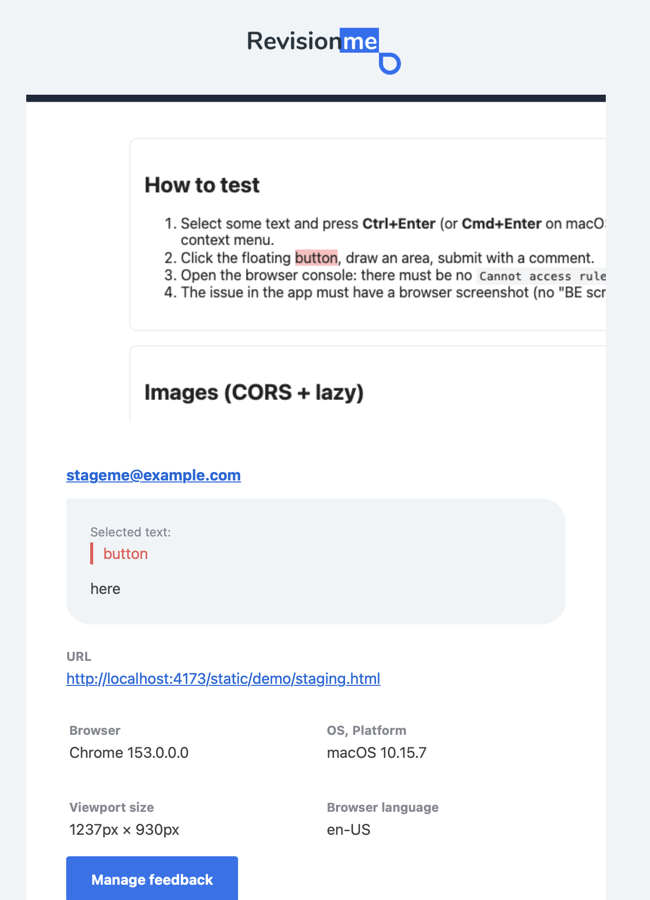
An email goes to the address of the Google account you signed in with. Nothing to set up: emails are on from the moment you create an account. The letter repeats the whole report, so most of the time you do not have to open the app at all:
- the screenshot of the page, with the selected text highlighted or the chosen area marked;
- the visitor's email as a link, or nothing when the report is anonymous;
- the selected text and the comment;
- the page URL;
- browser, operating system, window size and the language of the visitor's browser;
- a Manage feedback button that opens this report in the app.
Letters go to the account address only; there is no way to add a second address or to send them to a shared mailbox yet. A mail rule that forwards everything from revisionme.com to your team is the current workaround, and additional addresses are on the roadmap.
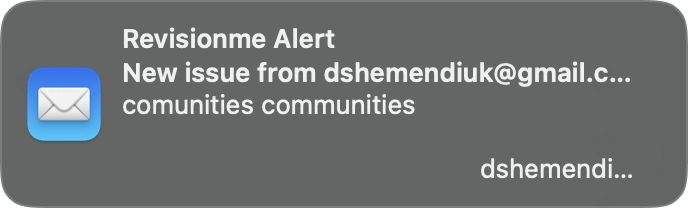
If emails stop arriving, check the spam folder first and add revisionme.com to your contacts. Emails are sent per report, so a busy site can produce many of them; the list in the app is always the full picture.
Web push in the browser
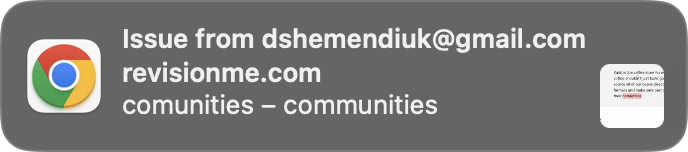
Web push shows a system notification the moment a report arrives, even when the app is not open. To enable it, open Account in the web app and press Enable notifications, then allow notifications in the browser prompt. The push shows the visitor's email or “Anonymous”, the site and the beginning of the comment; a click opens the report.
Web push is granted per browser and per device: enable it in every browser where you want to receive it. It requires a browser with Web Push support (Chrome, Firefox, Edge, Safari 16 and later; on iOS the site has to be added to the home screen first). If you blocked notifications earlier, allow them again in the browser's site settings and press the button once more.
Who receives the notifications
Notifications go to the owner of the project, that is the account that created it. Each account manages its own projects; there is no team inbox yet. To let a colleague see a report, share it by link.