
Embed code and widget options
Installing the widget
Create a project in the web app and copy its embed code from the project settings. Paste it into every page where you want to collect feedback, right before the closing </body> tag:
<script>
window.__rm__config = {
  projectId: 'YOUR_PROJECT_ID',
  locale: 'auto'
};
</script>
<script src="https://widget.revisionme.com/app.js" defer id="rm_app_script"></script>
The script is loaded with defer, so it does not slow down your page. The widget itself is about 20 KB, keeps its interface in a shadow DOM so your styles and its styles never mix, and loads the screenshot module only when a visitor opens the form.
WordPress, Google Tag Manager, Tilda, Webflow, Wix, Shopify, Squarespace, React, Next.js or Nuxt: see Installing the widget on your platform.
Ctrl+Enter is always on
With the widget installed, a visitor can select any text on the page and press Ctrl+Enter (⌘+Enter on a Mac). The feedback form opens with the selection attached. This works regardless of the other options below.
Options in __rm__config
The project settings in the app generate the code for you; these are the options behind it. An option that is missing counts as off.
projectId- Required. Identifies your project; reports go to the project owner.
locale- Language of the widget interface. See Widget language.
contextWidget: 1- Text selection button. When a visitor selects text, a small button appears next to the selection; a click opens the form with that text.
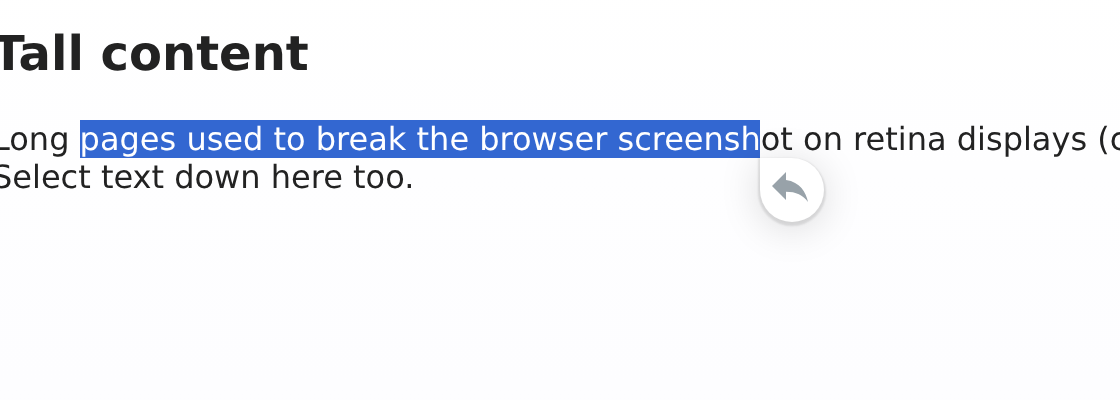
The button next to a selection. floatingBtn: 1- Floating feedback button in a corner of the page. A click lets the visitor drag a rectangle over the problem area; the form opens with that area.
floatingBtnPosition: 'left'moves it to the left corner (default is right),floatingBtnStyle: 'light'switches to the light style (default is dark).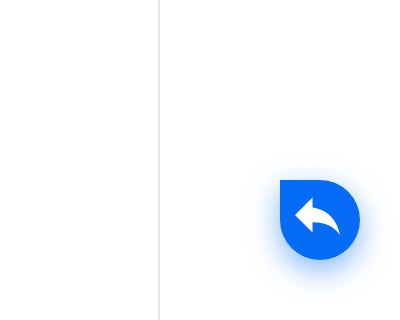
The floating button in the corner (dark style, right). embedBtn: 1- Inline “Leave feedback” link inserted exactly where the widget script tag is placed, for example at the end of an article.
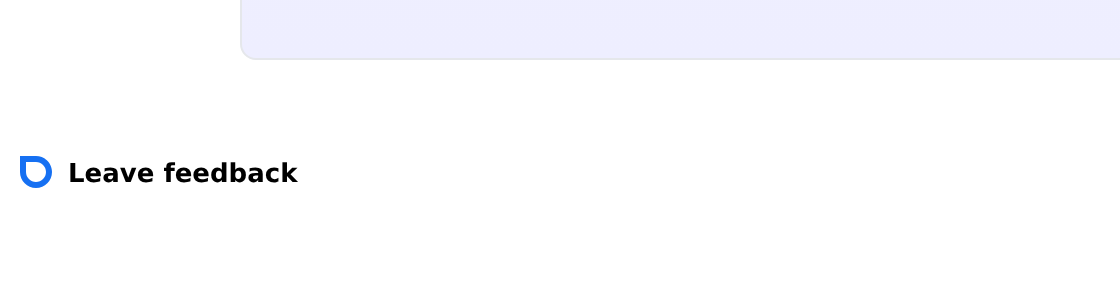
The inline link where the script tag is placed.
What a report contains
Every report includes the visitor's comment, a screenshot of the visible part of the page with the selection or area marked, the selected text, the page URL, the browser, operating system and viewport size, and the visitor's email if they chose to leave it. You see all of it in the web app and in the notifications.