
Creating and managing projects
A project is one website. It owns the embed code you put on that site, the widget settings that code carries, and the list of reports that come back. Sign in to revisionme.com/app with Google and you land on Projects.
Creating a project
Press Add project, and the form asks for one thing: the address of your site.
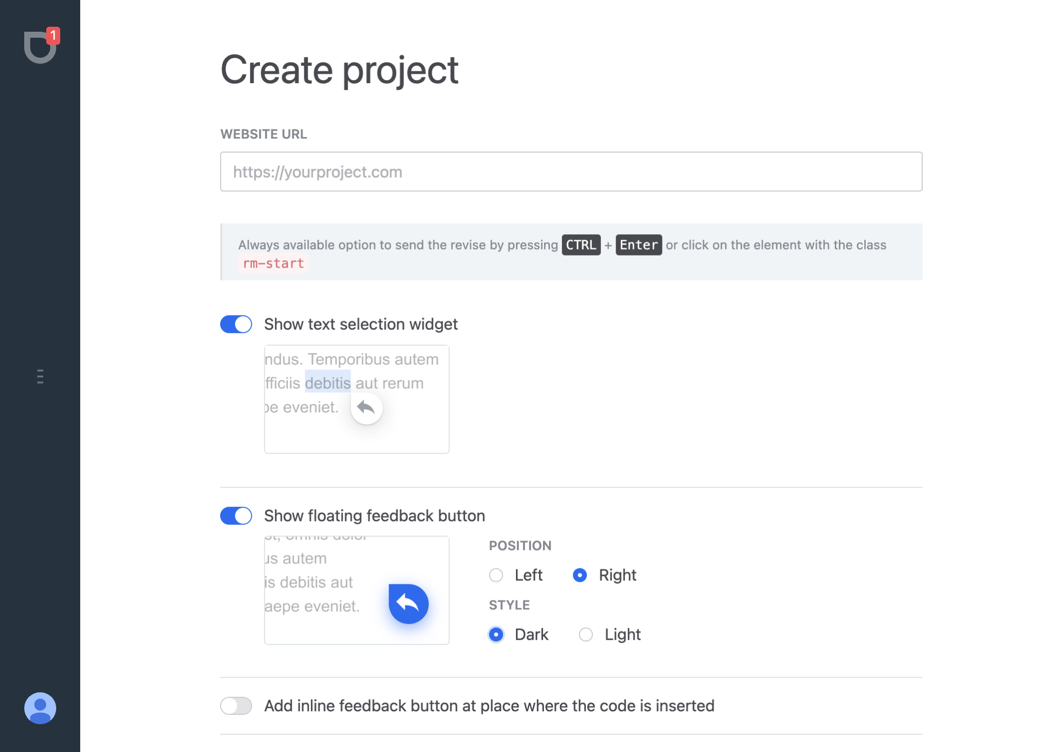
- Website URL
- The address of the site the widget will run on, for example
https://example.com. It becomes the project name and the rule for which sites may send reports, so enter the bare domain rather than the address of one page. See White-listed hosts below. - The widget switches
- The text selection button, the floating button with its position and style, the inline button, and the widget language. Every one of them is described in Embed code and widget options and Widget language; all of them can be changed later. Whatever you pick here, Ctrl+Enter and an element with the class
rm-startalways open the form.
Press Create and the app shows the ready embed code. Paste it into your site before the closing </body> tag — or only onto some of the pages, see Showing the widget only where you need it — and the first report can arrive straight away.
The projects screen
Each project is a card with the screenshot of its latest report as the cover, the site address, the number of open reports and a red badge with the new ones. The card opens the reports; the cog in its corner opens the settings. The same list, with the same counters, lives in the narrow bar on the left of every screen.
Project settings
The settings have two tabs.
General
- Project code
- The embed code for this project, ready to copy: a click inside the field selects all of it. This is the only place you need for installing the widget on a new page or on a new template.
- White-listed hosts
- The sites this project accepts reports from: the host from your Website URL and its subdomains (
*.example.com), pluslocalhostfor local development. A report sent from any other domain is discarded, so one project cannot serve two different sites — the second one needs its own project.
Widget
The same switches as in the create form, plus Save settings. One thing to remember: the settings are not stored on our side for your visitors, they are written into the embed code. After saving, copy the updated code from the General tab and replace the old one on the site — the app reminds you about it too. Until you do, the site keeps working with the previous options.
Renaming and deleting
The ⋮ menu in the corner of the settings has Rename and Delete project. Renaming changes only the name in the app — the code, the reports and the white-listed hosts stay as they are.
Deleting removes the project together with all of its reports, and the public share links to them stop working. It cannot be undone, so save what you still need first. Deleting a project does not remove the code from your site: take the snippet out of the pages as well, otherwise the widget keeps opening there while nothing reaches you any more.
How many projects
The free plan on the Account page covers up to 5 projects, 500 reports a month and the small Revisionme mark next to the form. There is nothing to pay for today; if you need more, write to hello@revisionme.com.