
Working with reports in the web app
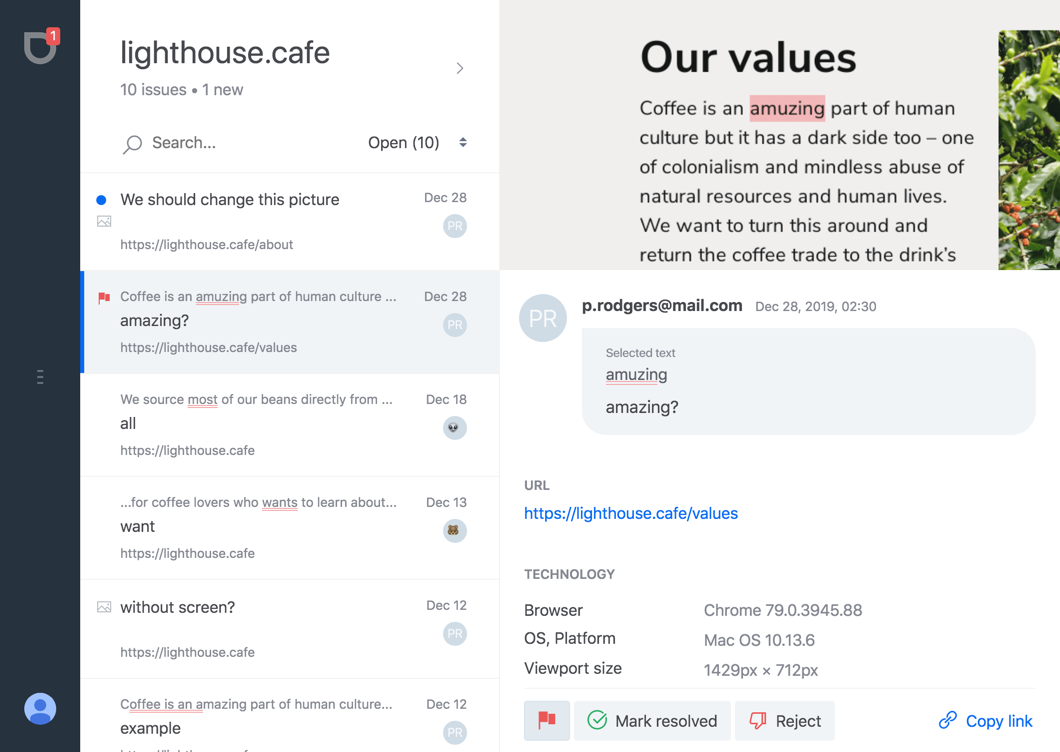
Everything your visitors send lands in the web app at revisionme.com/app — sign in with the same Google account that owns the project. The screen has two columns: the list of reports on the left, the selected report on the right.
The list
Above the list there is the project name, the number of open reports and how many of them you have not opened yet; a click on that line opens the project settings. Below it are the search field and the status selector.
Every row shows what the report is about: the sentence around the selected text with the fragment underlined, the visitor's comment under it, and the page address it came from. On the right are the date and a round avatar with the initials of the visitor's email, or a neutral one when the report is anonymous. Three marks appear on the left of a row:
- a blue dot — a new report you have not opened yet;
- a red flag — you marked the report as important;
- a picture icon — the visitor did not select any text, so the report is about an area of the page rather than about a phrase.
The search field filters by the text of the reports. The selector next to it switches between Open, Resolved, Rejected and Important, with a counter in each; the list starts at Open, which is where every new report goes.
What one report contains
Click a row and the right column shows the whole report.
- The screenshot. The visible part of the page at the moment the visitor pressed send, with the selected text highlighted or the chosen area marked. If the captured area is large, the button in its corner expands the screenshot to full size.
- Who and when. The visitor's email if they left one, otherwise
Anon…with a generated number, and the date and time. The email is a link: a click opens your mail client with the comment, the selected text and the page URL already quoted, so you can answer without copying anything. - Selected text and comment. The exact fragment the visitor selected, highlighted, and the text they typed. A report can have only a comment (the area case) or, rarely, only a selection.
- URL. The page the report came from, as a link that opens in a new tab.
- Technology. Browser and version, operating system, the size of the browser window and the language of the visitor's browser — usually enough to reproduce a layout problem without asking the reporter anything.
Managing a report
The buttons at the bottom of the report are the whole workflow:
- Flag
- Marks the report as important. A red flag appears on the row, and the Important filter collects all of them — handy when a page brings twenty reports and three of them are real bugs.
- Mark resolved
- The report is done: fixed, published, answered. It leaves the Open list and the open counter, and stays available under Resolved.
- Reject
- The report needs no action — a duplicate, spam, a misunderstanding. It moves to Rejected the same way.
- Reopen
- Appears on a report that is already resolved or rejected and puts it back into Open.
- Share
- Copies a public link to this single report, for a developer or a client who has no Revisionme account. See Sharing a report by link.
- Copy for AI agent
- Copies the report as a ready prompt — the URL, the selected text, the comment, the viewport and the browser, with links to the screenshot and the report — to paste into Claude Code, Cursor, Copilot or any other coding agent. See Sending a report to an AI coding agent.
A report is marked as read the moment you open it, which is what the blue dots and the counters in the sidebar and on the project cards are based on. Nothing else changes a status: the visitor is not notified about it, and the widget on your site knows nothing about it either.
Several projects
The narrow bar on the left opens the list of your projects with a counter of new reports on each, and the account page. Reports never mix between projects: each project is a separate list, filled by the widget installed on that site.
What is not there yet
There is no way to delete a single report, no replies inside the app (answer by email from the report), no team access and no assignees — one account owns a project and sees its reports. Those are on the roadmap; new reports also reach you as email and browser notifications, so you do not have to keep the app open.